Track PMS Integration Guide
Follow the steps below to connect your Track PMS account to Crewdogs.
What You'll Need
Gather the following values as you work through each step.
| Required Item | Where to Find It |
|---|
| 1. URL Endpoint | e.g. https://{yourdomain}.trackhs.com/api/pms/ |
| 2. Channel Key | Found on the Edit Channel page in Track |
| 3. Channel Secret | Found on the Edit Channel page in Track |
| 4. Payment Method ID | ID of your Net Commission payment method in Track |
| 5. PromoCode ID | Numeric ID from the Promo Codes list in Track |
Step 1
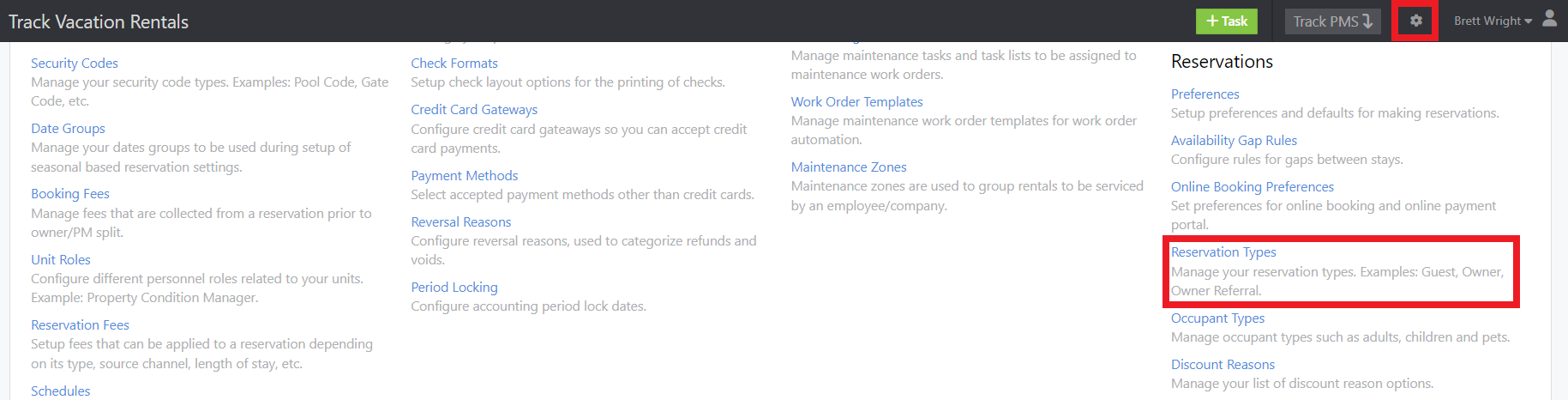
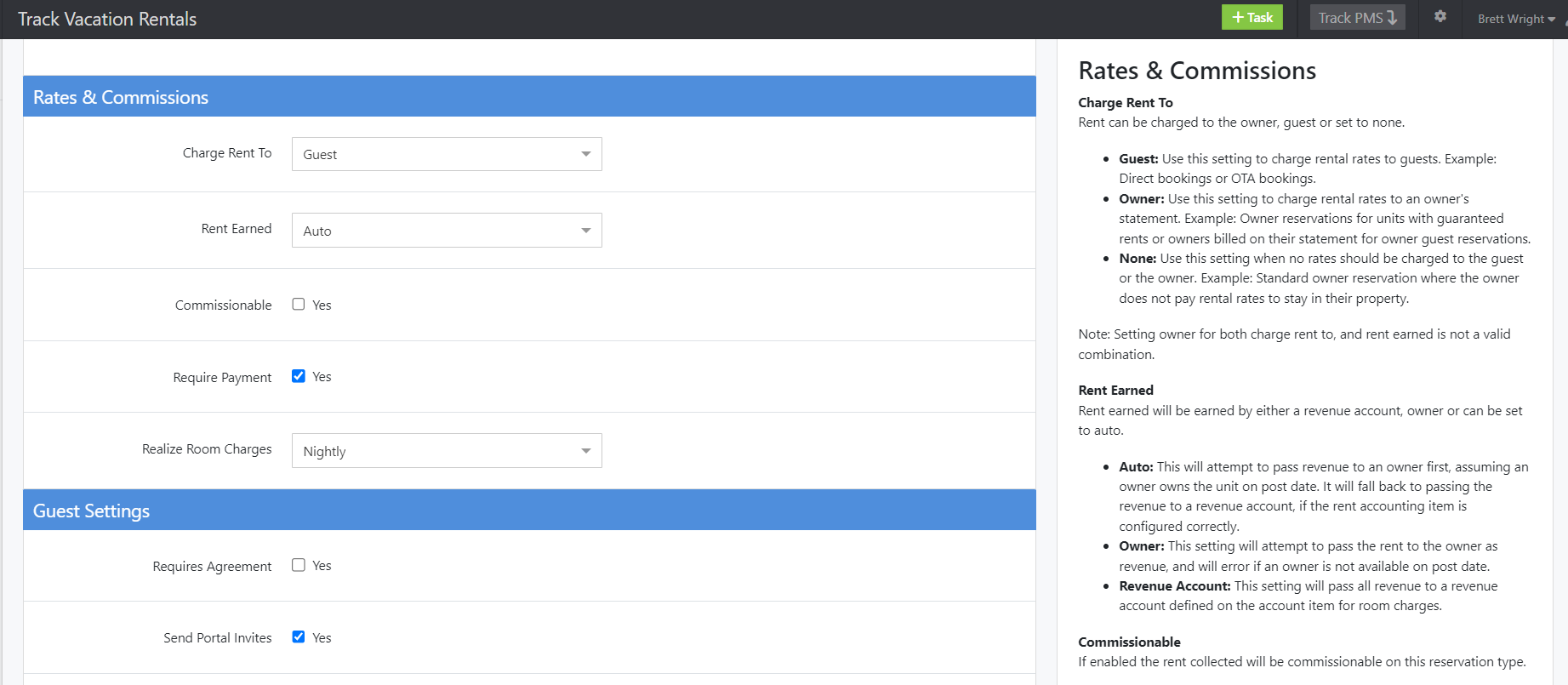
Create a Net Commission Payment Method
Crewdogs is always the Merchant of Record — a Net Commission Payment Method is required. Create this first so you can select it when creating the Crewdogs channel in Step 3.
- Navigate to Configuration → Payment Methods (under the Accounting header)
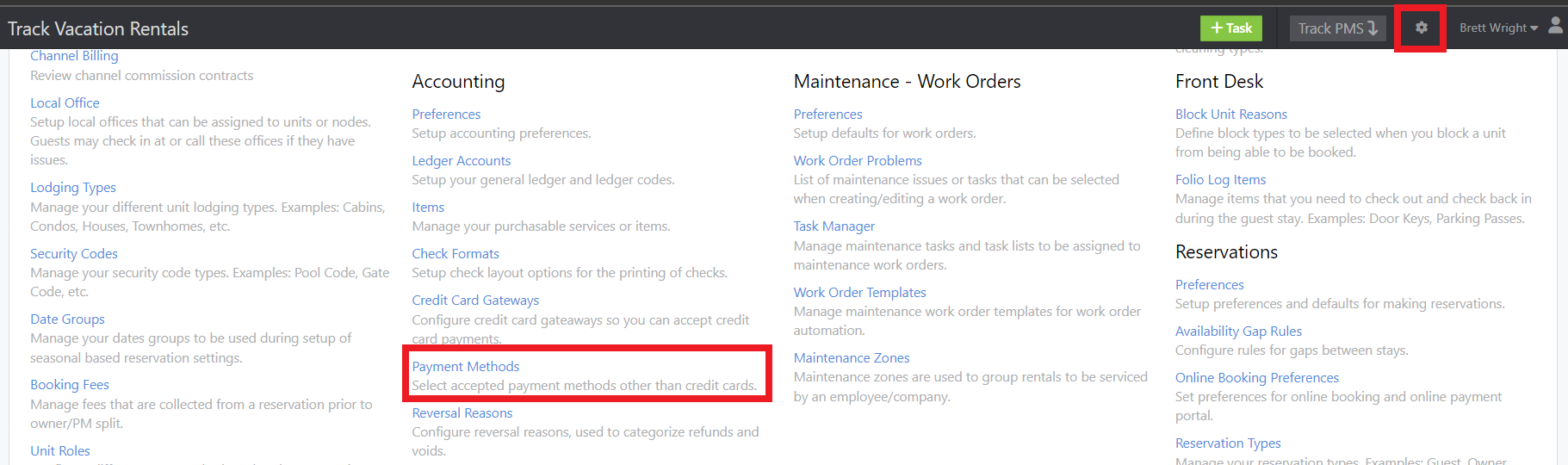
- Click the green "+ Payment Method" button in the top-right corner
- Set Type to "Net Commission", name it to reference Crewdogs (e.g. "Crewdogs Net Commission Payment"), and select the appropriate Asset and Commission accounts
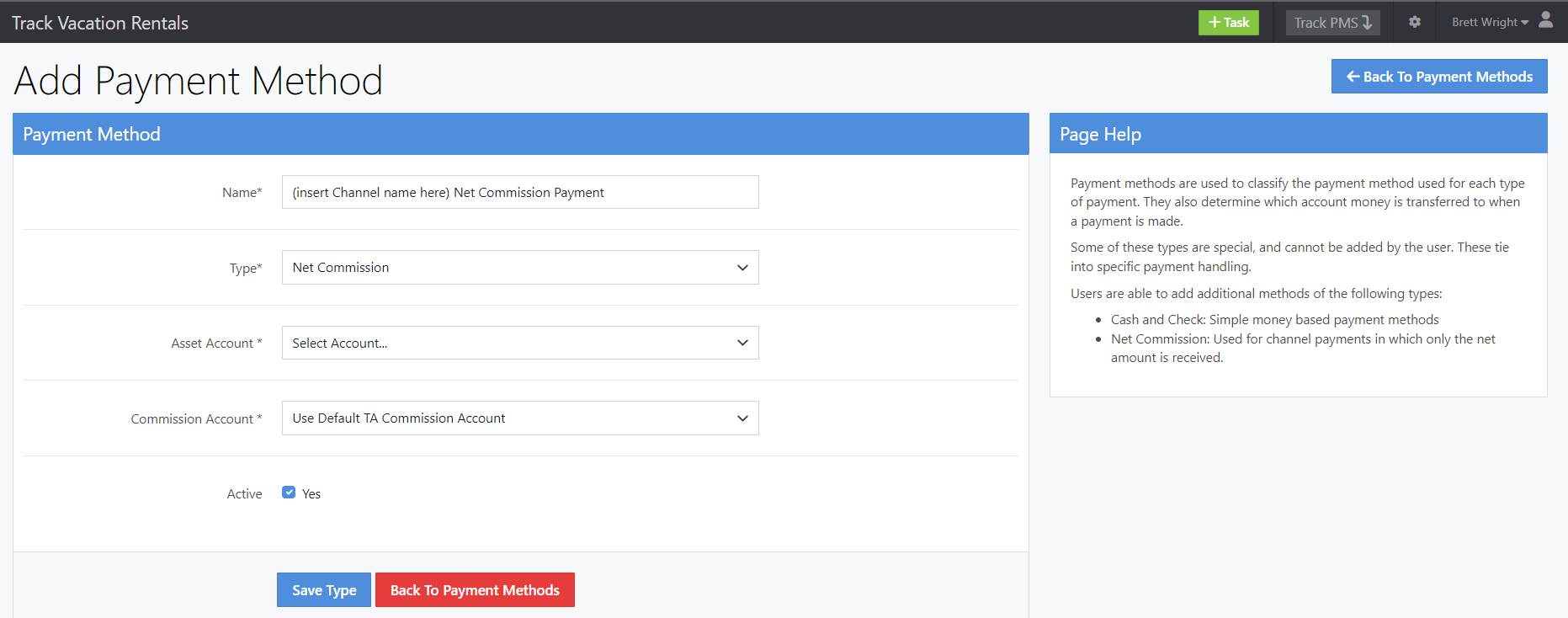
- Click "Save Type"
- Note: You may need to create an Asset (Ledger) Account and/or Commission (Ledger) Account to associate on this page.
- Record the Payment Method ID as Item 4 — you will select this payment method when creating the Crewdogs channel in Step 3
NOTE: The Payment Method ID is the numeric ID in the leftmost column of the Payment Methods list — pass this number to Crewdogs, not the payment method name (e.g. "Crewdogs Net Commission Payment").
Step 3
Create a New Crewdogs Channel
- Navigate to Configuration → Distribution Channels (under the Property Management header)
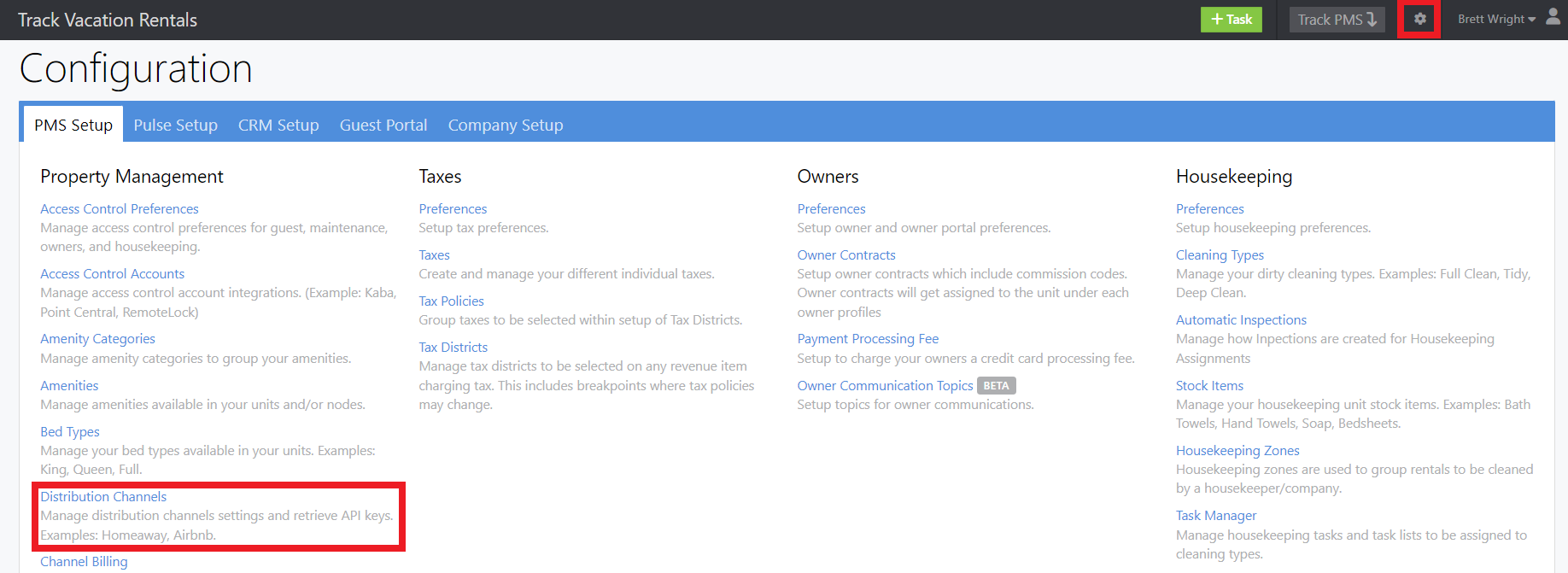
- From the Channels page, click the green "Create Channel" button in the top-right corner
- In the pop-up, search for or select "Crewdogs" from the channel name drop-down, then click "Submit"
- If Crewdogs is not displaying, set up a Custom Channel and be sure to name it accordingly — e.g. "Crewdogs"

- Complete all required fields on the Channel configuration page; use the Page Help for guidance
- Tip: Within the API Settings section, all checkboxes can be selected. If "All Units Available" does not allow unit data to flow through, enable individual units via each unit's own configuration.
- Payment Method: Select the Net Commission payment method you created in Step 1.
- Reservation Type: Associate the Reservation Type you created in Step 2.
- Once complete, click "Save Channel" at the bottom of the page
Step 4
Obtain Your Endpoint, Channel Key, and Channel Secret
- After saving, return to the Channels list. Click the "Edit" button on the newly-created Crewdogs channel

- On the right-hand side of the Edit Channel page, locate the API Key section — your unique Endpoint, Key, and Secret are displayed there
- Endpoint format: https://{yourdomain}.trackhs.com/api/pms/
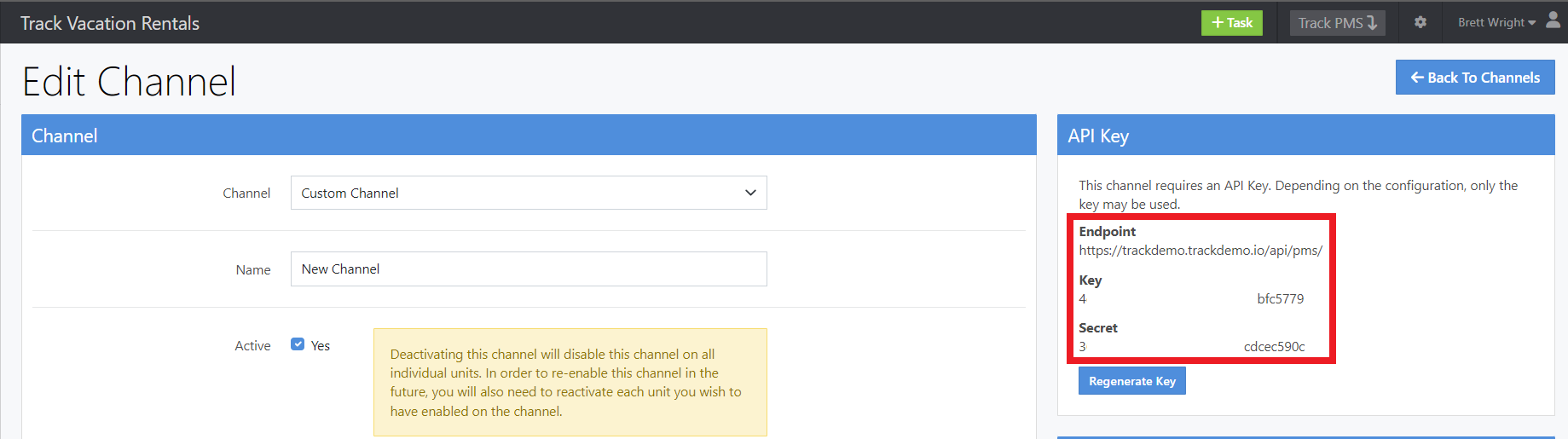
- Record these values as Items 1, 2, and 3
NOTE: These values are unique to each customer. If you need to retrieve the Key and Secret again later, navigate to Configuration → Distribution Channels and click Edit on the Crewdogs channel.
Step 5
Enable Channel for Rate Types & Reservation Fees
In order for Crewdogs to receive your rates, the new channel must be added to your applicable Rate Types and Reservation Fees.
Rate Types
- Navigate to the sidebar menu → Property Management module → Rate Types
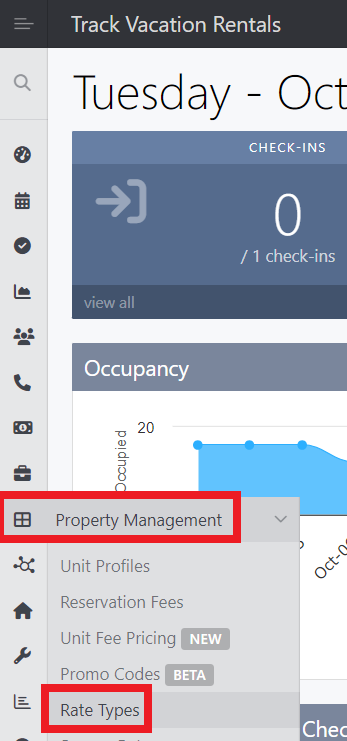
- Click the "Edit" button for each Rate Type you want available on Crewdogs
- Within that Rate Type's configuration, select "Crewdogs" from the Channels multi-select field, then click "Save Type"
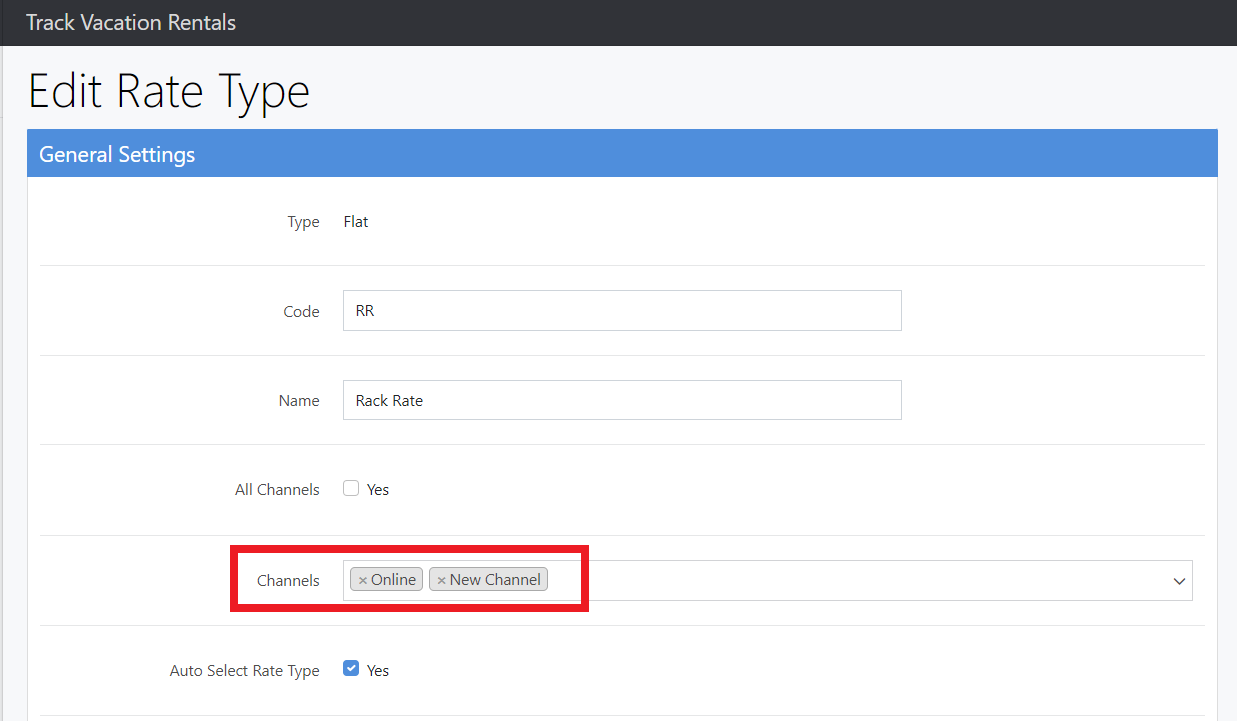
- Repeat for each applicable Rate Type
Reservation Fees
- Navigate to the sidebar menu → Property Management module → Reservation Fees
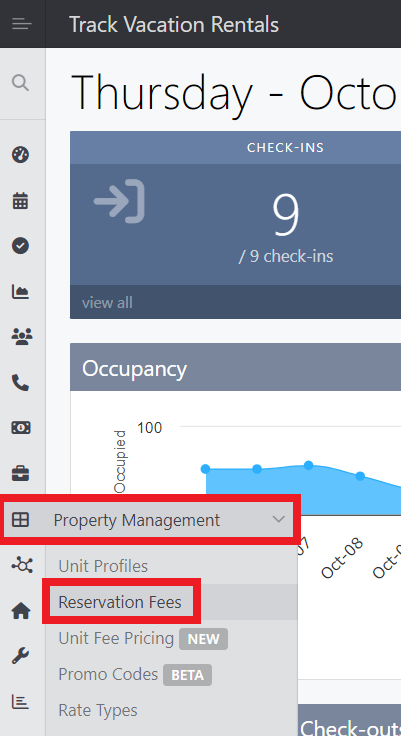
- Click "Edit" for each applicable fee and add Crewdogs to the channel list, then save
NOTE: If you plan to pass along a mark-up on rates to cover distribution costs, review the Embedded Fees / Derivative Rates documentation in Track's Support Center before completing this step.
Step 6
Create and Configure the Military Discount PromoCode
Crewdogs uses a PromoCode to apply the built-in military discount. Create a PromoCode in Track and provide its ID to Crewdogs.
- Navigate to the sidebar menu → Property Management module → Promo Codes
- Click "+ Promo Code" in the top-right corner and configure as follows:
- Name: Internal name (e.g. "Crewdogs Military Discount") — not visible to guests
- Code: Code string (e.g. "CREWMIL") — this is what the integration will pass
- Discount Type: Select "Reservation" to apply to total gross rent
- Discount Value: Select "Percent" and enter the discount percentage
- Active Promotion: Toggle on
- Save the promo code, then note the numeric ID shown in the # column of the Promo Codes list
- Record the PromoCode ID as Item 5
NOTE: The PromoCode ID is the numeric ID in the leftmost column of the Promo Codes list — pass this number to Crewdogs, not the code text.
Step 7
Provide Required Information to Crewdogs
Once all values are collected, send the following to your Crewdogs onboarding contact:
- URL Endpoint (Item 1)
- Channel Key (Item 2)
- Channel Secret (Item 3)
- Payment Method ID (Item 4)
- PromoCode ID (Item 5)
WARNING: Never share your Channel Key, or Channel Secret publicly. Send these only to your Crewdogs onboarding contact via secure communication.
Step 8
Review Triggers & Automations
As a final step, review your existing Triggers & Automations in Track and update them to include or exclude the new Crewdogs channel as needed.
- Navigate to Configuration → Company Setup tab → Business Rules → Triggers (event-based)
- Navigate to Configuration → Company Setup tab → Business Rules → Automations (time-based)
- For each relevant item, confirm whether the Crewdogs channel should be included or excluded, and save any changes
You're all set! Contact your Crewdogs onboarding representative if you have any questions.
Need help with your setup?